 NOOP App Guide

Quick steps
- Download the NOOP zip and open it.
- Drag NOOP into your Applications folder.
- Open NOOP. When macOS blocks it, click Done.
- Go to System Settings → Privacy & Security and click Open Anyway (or use Terminal).
- Allow Bluetooth, tap Begin, and pair your strap.
Before you start
- A Mac with macOS 13 or newer, Apple silicon or Intel, with Bluetooth. Check in Apple menu → About This Mac.
- Your WHOOP strap, charged, and close to your Mac while you pair.
- The official WHOOP app closed on your phone, or your phone's Bluetooth off, while you pair. A strap stays paired to one device at a time.
The pictures below are drawings of each window, made to match macOS's wording.
Download NOOP for Mac
Download NOOP 12.0.0 (Mac)30.5 MB
The file is NOOP-macos-v12.0.0.zip, straight from NOOP's GitHub releases. It works on Apple silicon and Intel Macs.
How to install NOOP on Mac
Open the zip
Open your Downloads folder and double-click the NOOP
.zip. It unpacks into NOOP.app. (Safari often unpacks it for you, so you may already see NOOP.app.)Drag NOOP into Applications
Drag NOOP.app onto Applications in the Finder sidebar. Run it from there, not from Downloads.
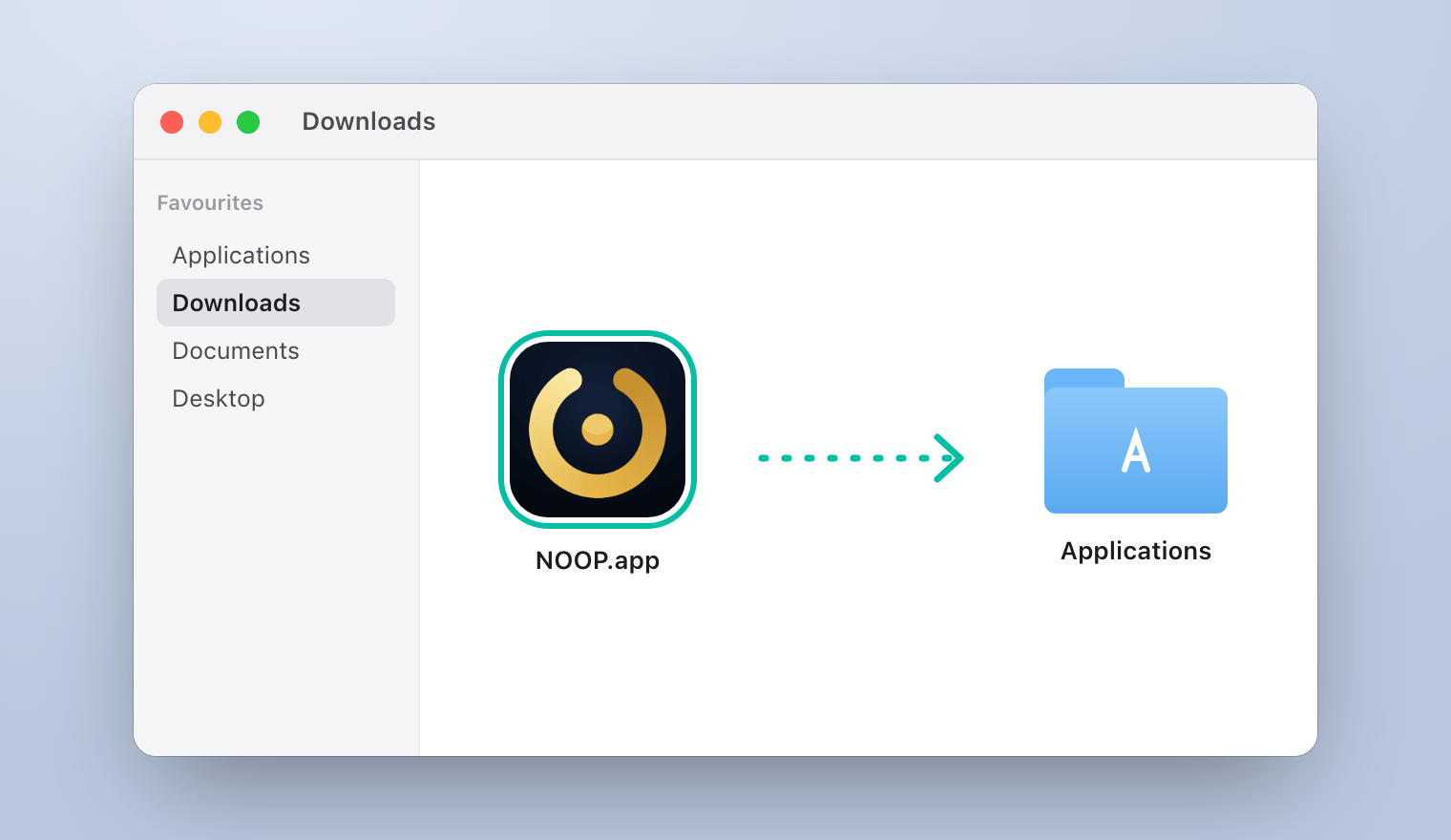
Open NOOP the first time
macOS's Gatekeeper blocks apps that aren't notarized by Apple, and NOOP isn't, because notarizing needs a paid developer account tied to a real name. You only have to get past this once. Pick either way.
The no-Terminal way: Open Anyway
Try to open NOOP
Double-click NOOP in Applications. macOS says "NOOP" Not Opened. Click Done. Don't click Move to Trash.
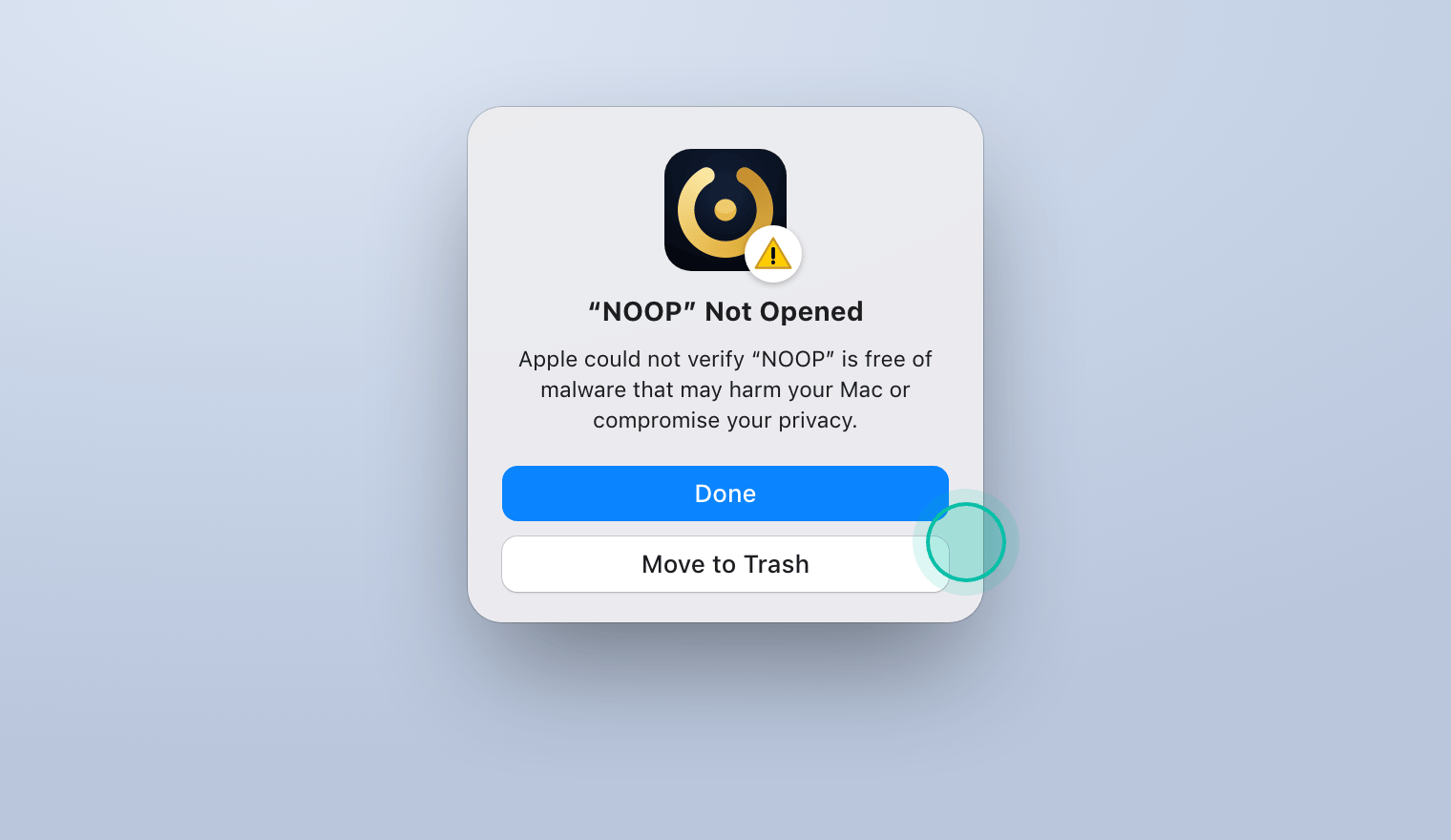
Click Open Anyway in Privacy & Security
Open the Apple menu → System Settings → Privacy & Security. Scroll down to Security. Next to "NOOP" was blocked to protect your Mac, click Open Anyway.
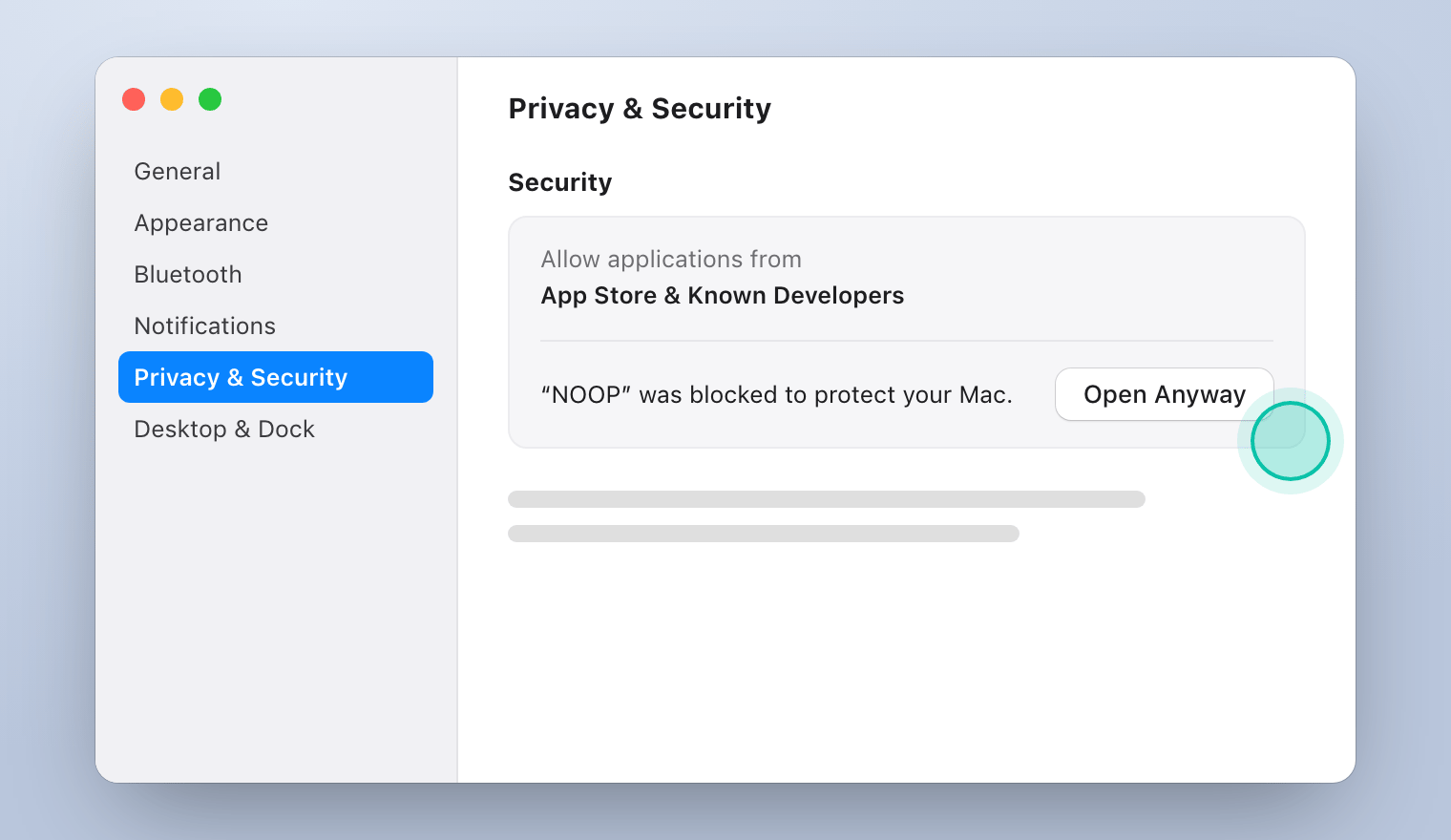
Confirm
macOS asks once more. Click Open Anyway and enter your Mac's password or use Touch ID. NOOP opens, and from now on it opens normally.
On macOS 14 Sonoma and earlier there's a shortcut: Control-click NOOP in Applications, choose Open, then click Open again.
The Terminal way: one command
This removes the download "quarantine" flag that triggers the warning. It's the most reliable fix, and it's also the cure if macOS says NOOP is damaged and can't be opened.
Open Terminal (in Applications → Utilities), paste this, and press Return:
xattr -dr com.apple.quarantine /Applications/NOOP.app
Then open NOOP normally. The command prints nothing when it works.
Allow Bluetooth and set up NOOP
Allow Bluetooth
When macOS asks whether NOOP can use Bluetooth, click Allow. NOOP talks to your strap directly over Bluetooth, and nothing leaves your Mac.
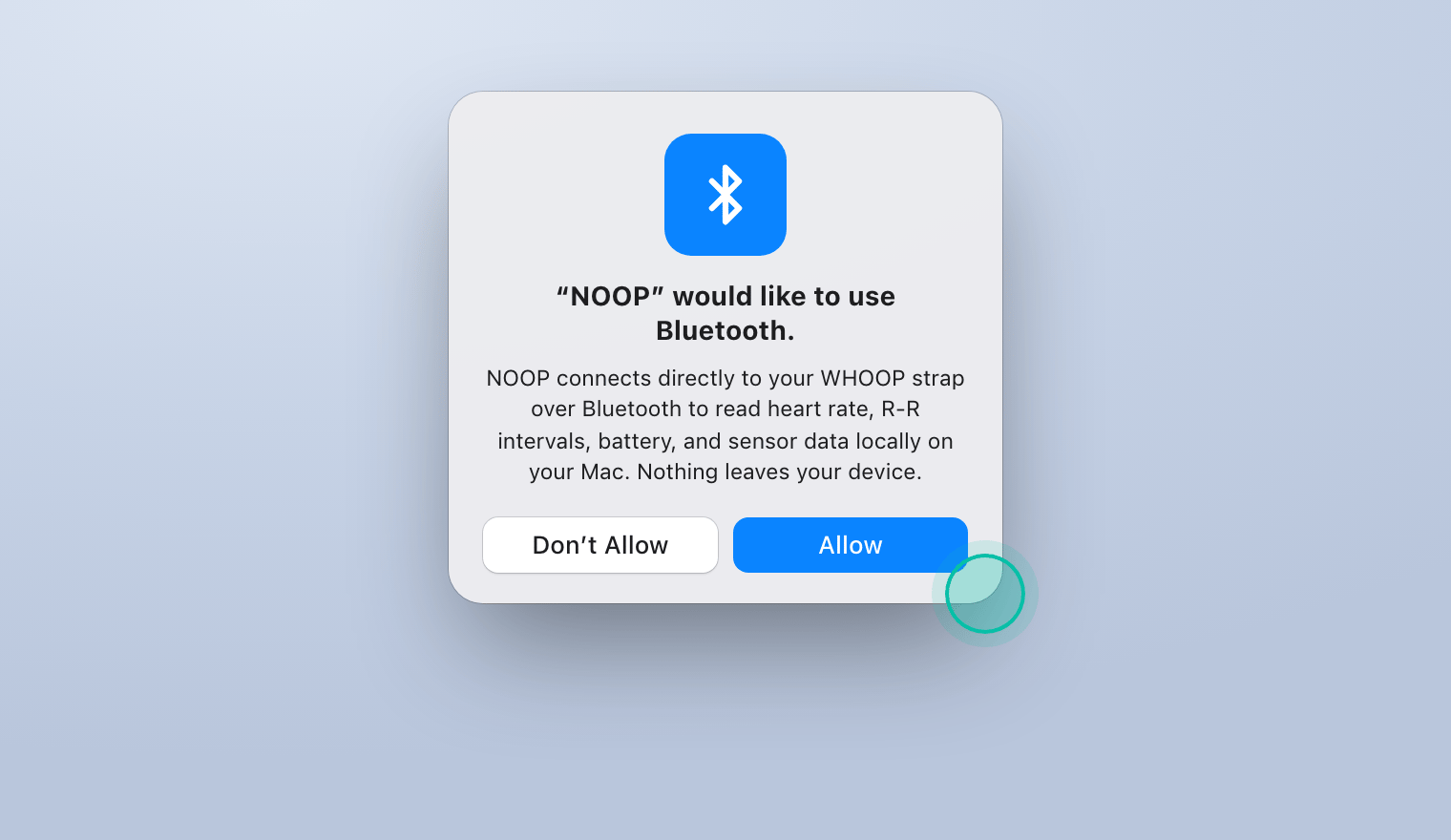
Clicked Don't Allow by mistake? Turn NOOP on in System Settings → Privacy & Security → Bluetooth.
Go through the setup
Click Begin, read the short screens, and put your strap on when NOOP asks. On Find your strap, NOOP scans and pairs. Your strap won't appear in System Settings → Bluetooth; that's normal.
Pair your strap
When it says Bonded · streaming, carry on through About you and Bring your history. The pairing guide explains every step, including the extra steps for a WHOOP 5.0 or MG.
Once it's set up, NOOP adds a heart-rate readout to your menu bar, and the Automations screen can lock your Mac when you double-tap the strap or take it off.
How to update NOOP on Mac
NOOP checks for new versions once a day and tells you when one is out. To update:
- Download the new zip and open it.
- Quit NOOP (NOOP → Quit NOOP, or press Command-Q).
- Drag the new NOOP.app into Applications and choose Replace.
- Open it. If macOS blocks it again, repeat Open Anyway or the Terminal command.
Your data stays: it's kept separately from the app.
How to uninstall NOOP from Mac
- Quit NOOP, then drag it from Applications to the Bin.
- To delete your NOOP data too, open Finder, press Shift-Command-G, go to
~/Library/Containers, and move the NOOP folder (com.noopapp.noop) to the Bin.
Your data isn't stored anywhere else, so it's gone for good once you empty the Bin. Export it first if you might want it.
Mac troubleshooting
| Problem | Fix |
|---|---|
| "NOOP" is damaged and can't be opened | It isn't damaged. Run the Terminal command, then open NOOP. |
| No Open Anyway button in Privacy & Security | Try to open NOOP first, then check again within an hour. The button only appears after a blocked attempt. |
| NOOP opens from Downloads but not Applications, or the other way round | Keep one copy, in Applications, and delete the other. |
| NOOP can't find the strap | Check System Settings → Privacy & Security → Bluetooth allows NOOP, and close the WHOOP app on your phone. See pairing problems. |
brew install can't find NOOP | There's no working Homebrew cask right now. Download it as above. |
Frequently asked questions
Why does macOS say NOOP can't be opened or is damaged?
Apple only opens downloaded apps without asking if they're notarized, and notarizing needs a paid developer account tied to a real identity. NOOP is published anonymously, so it isn't notarized. The "damaged" message comes from the download quarantine flag, not from anything wrong with the app. NOOP is sandboxed and its full source code is on GitHub.
Does NOOP work on Apple silicon and Intel Macs?
Yes. The same download runs natively on both, with macOS 13 Ventura or newer and Bluetooth.
Is there a Homebrew cask for NOOP?
Not at the moment. The old noopapp tap no longer exists, so brew install won't find NOOP. Download it from GitHub as shown in this guide.
Can I build NOOP myself instead?
Yes. With Xcode 15 or newer and XcodeGen, you can build the Mac app from its source code, which also avoids the Gatekeeper warning. The steps are in NOOP's build guide on GitHub.
Why doesn't my WHOOP strap show up in Bluetooth settings?
WHOOP straps don't use a profile that macOS lists in System Settings → Bluetooth. Only apps like NOOP can find them, so there's nothing to pair there. Pair the strap from inside NOOP instead.
Share this guide
Related guides
- 7 min readHow to pair your WHOOP strap with NOOPPair a WHOOP 4.0, 5.0 or MG strap with NOOP step by step: free it from the WHOOP app, use pairing mode, connect, and import your WHOOP history. Plus fixes for bond refused and missing data.Read the guide
- 5 min readNOOP not working? Fixes for every common problemNOOP won't install, won't pair, misses nights or shows Calibrating? Fixes for every common NOOP problem on Android, iPhone and Mac, plus how to report a bug with your strap log.Read the guide
- 8 min readNOOP features: every screen explainedEverything the NOOP app can do: live heart rate, Charge, Effort and Rest, sleep stages, trends, Breathe, Intervals, insights, the AI Coach, Mac automations and more, explained screen by screen.Read the guide
- 7 min readHow to import your WHOOP data into NOOPGet your full WHOOP history into NOOP: request your WHOOP data export, import the zip, add Apple Health, Health Connect and nutrition data, and back up or move NOOP to a new phone.Read the guide