 NOOP App Guide

Quick steps
- Fully close the official WHOOP app on your phone, or turn that phone's Bluetooth off.
- Charge your strap and wear it snug, sensor against your skin, close to your device.
- WHOOP 5.0 or MG only: tap the band firmly until its lights flash blue.
- In NOOP, follow Find your strap during setup, or open Live and tap Scan & Connect.
- Wait for Bonded · streaming, then keep the strap nearby for a few minutes while its history syncs.
How pairing works
A WHOOP strap keeps a secure Bluetooth link, called a bond, with one device at a time. Normally that's your phone, through the official WHOOP app. To use NOOP, the strap has to bond with NOOP instead.
Two things surprise most people:
- The strap doesn't appear in your Bluetooth settings. That's normal. Only apps like NOOP can see it. Never pair it from Settings.
- Live heart rate can work without a bond. It uses the standard heart-rate signal any app can read. Everything else (history sync, buzzing, alarms, double-tap) needs the full bond. If heart rate works but nothing else does, the strap isn't really paired yet.
Before you pair
- NOOP is installed on the device you'll use: Android, iPhone or Mac.
- NOOP can use Bluetooth (and Nearby devices on Android).
- The strap is charged and on your wrist or bicep, snug, sensor against your skin.
- The WHOOP app is closed. Swipe it away completely on your phone, or turn that phone's Bluetooth off for now.
Pair a WHOOP 4.0
The 4.0 is NOOP's fully supported strap: you get live heart rate, history sync and all three scores.
Free the strap from the WHOOP app
Fully close the WHOOP app on your phone, or turn off that phone's Bluetooth. If you're pairing to NOOP on the same phone, closing the WHOOP app is enough.
Wear the strap and keep it close
Put it on snug, with the sensor against your skin, and keep it within about a metre (3 feet) of your phone or Mac. If the battery is low, give it a few minutes of charge first.
Scan in NOOP
During NOOP's setup, the Find your strap step starts scanning by itself. Already past the setup? Open Live and tap Scan & Connect.
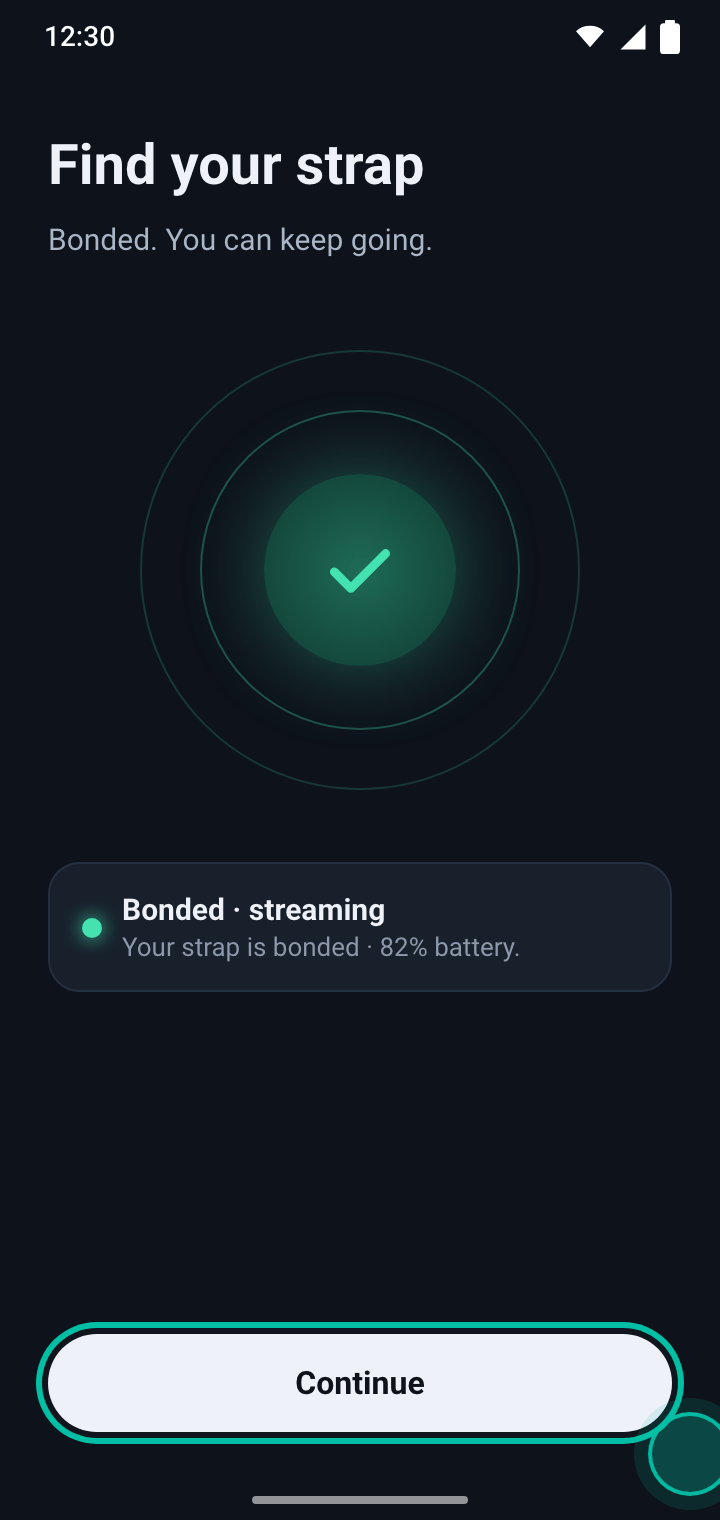
When the strap bonds, you'll see Bonded · streaming and the strap's battery level. Tap Continue.
Let the first sync finish
Keep the strap close for a few minutes. NOOP copies the data the strap has stored, roughly its last two weeks, and starts working out your scores.
Pair a WHOOP 5.0 or MG
The 5.0 and MG are stricter than the 4.0: if the strap is still bonded to the WHOOP app, it refuses NOOP. These steps free it first.
Close the WHOOP app completely
Swipe the WHOOP app away on your phone, or turn that phone's Bluetooth off, so it isn't holding the strap's bond. Also disconnect the strap from any other device running NOOP.
Put the strap in pairing mode
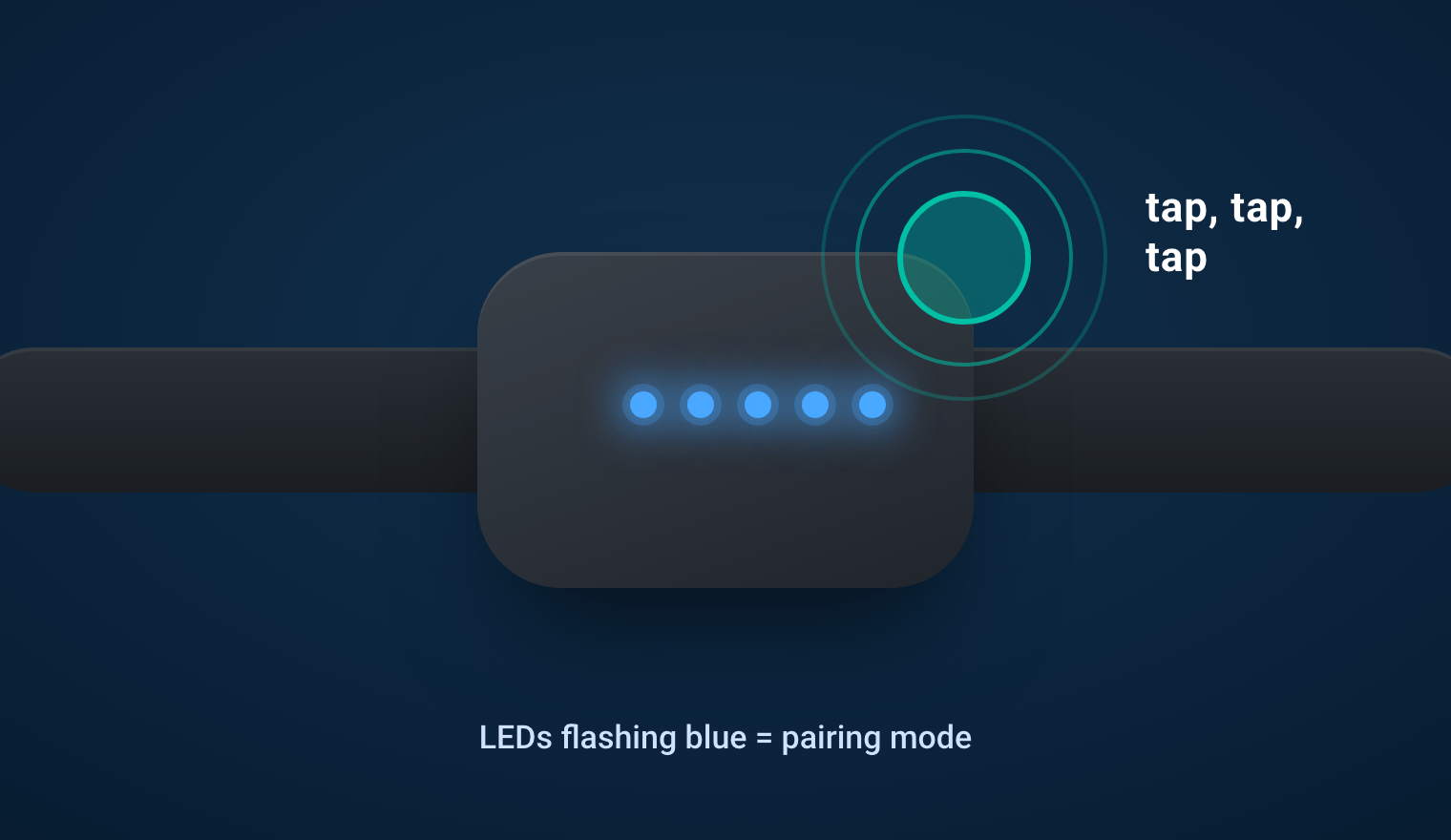
Tap the band firmly, on the sensor, several times in a row until its lights flash blue. That's pairing mode.
Choose WHOOP 5.0 / MG and connect
In NOOP, open Live, choose WHOOP 5.0 / MG, and tap Scan & Connect. During the first setup, the Find your strap step does the same.
It can take a couple of tries. If it fails, put the strap back in pairing mode and try again.
Check it's really paired
When the link is made, NOOP shows Bonded · streaming. If it says Live HR · not fully paired instead, heart rate is coming through but the bond isn't. Go back to step 1: something, usually the WHOOP app, is still holding the strap.
What to expect after pairing
NOOP's three main scores have their own names:
| NOOP | Means | When it appears |
|---|---|---|
| Charge | Recovery: how ready your body is today, 0 to 100 | After a few nights, once NOOP knows your normal HRV. Shows Calibrating until then |
| Effort | Strain: how hard your heart worked today | After your first synced day |
| Rest | Sleep: how well you slept | After your first synced night |
Keep NOOP able to run in the background (on Android, see battery settings) so it catches every night. Don't tap Recalibrate baseline while Charge is calibrating: it starts the count again from zero.
Import your WHOOP history
Don't want to wait for NOOP to learn your baseline? Import your WHOOP data export. NOOP reads it on your device and fills in your past recovery, strain, sleep and workouts in about a minute. It works with exports from a 4.0, 5.0 or MG.
- Request your data export from WHOOP. WHOOP emails you a link to a
.zipfile. - Download the
.zipon the device where you use NOOP. Don't unzip it. - In NOOP, open Data Sources and choose Import WHOOP export (.zip) (on iPhone and Mac, the WHOOP Export card).
Apple Health, Health Connect and nutrition imports work the same way. The full walkthrough, including backups and moving to a new phone, is in How to import your WHOOP data into NOOP.
Switch back to the WHOOP app
You're never locked in. To give the strap back to the official app, close NOOP (or turn off Bluetooth on that device) and pair the strap in the WHOOP app again. The WHOOP app may need to set the strap up from scratch. Your data in NOOP stays where it is.
Share your strap log for help
NOOP runs entirely on your device, so when something goes wrong, the strap log is how its developers can tell a real fault from a setup detail. Include it whenever you ask for help or report a bug:
- Android: Settings → Strap → Share strap log (for bug reports).
- iPhone and Mac: open Settings, find the Strap log section, and copy or save it.
Then post it with your NOOP version, device and strap model in an issue on GitHub, or ask on r/NoopBand.
Pairing troubleshooting
| Problem | Fix |
|---|---|
| NOOP can't find the strap at all | Close the WHOOP app, charge the strap, wear it, and keep it within a metre. Check NOOP has Bluetooth (and Nearby devices) permission. |
| "Bond refused" or "Encryption is insufficient" (5.0 / MG) | The strap is still bonded to the WHOOP app or another device. Free it, use pairing mode, and try again. |
| Heart rate works, but buzz, alarm, double-tap or history don't | The strap isn't fully bonded to this device. Disconnect it from everything else, then pair again here. |
| It keeps disconnecting overnight (Android) | Let NOOP run in the background. |
| Paired to my phone and Mac at once, and things act oddly | Only one device can hold the bond. Pick one and turn Bluetooth off on the other while you pair. |
| Charge says Calibrating for days | It needs several nights of wear. Import your WHOOP export to skip the wait. |
| Sleep or recovery empty on a 5.0 / MG | Expected for now. Only live heart rate is fully supported on these straps. |
Frequently asked questions
Why doesn't my WHOOP strap show up in Bluetooth settings?
WHOOP straps don't use a Bluetooth profile that phones and Macs list in their settings. Only apps like NOOP can find them, so there's nothing to pair in Settings. Pair the strap from inside NOOP.
Will pairing with NOOP break my WHOOP app?
No, but the strap can only hold its secure link with one app at a time. While it's paired with NOOP, the WHOOP app won't get its data. To go back, pair the strap in the WHOOP app again. It may need to be set up there afresh.
Can I pair one strap with my phone and my Mac?
Not at the same time. Live heart rate can show on several devices at once, because it uses the standard heart-rate signal, but only one device gets the full secure link. Pair the strap with the device you'll use most.
How long until my scores show up?
Live heart rate shows straight away. Effort (strain) and Rest (sleep) appear once you've worn the strap and it has synced. Charge (recovery) needs a few nights to learn your normal HRV, and shows Calibrating until then. Importing your WHOOP export fills in your history in about a minute.
Why is NOOP's resting heart rate lower than WHOOP's?
They measure different things. NOOP shows the lowest steady heart rate of your night, while WHOOP's number is closer to your whole-night average. A gap of 5 to 8 beats per minute is normal.
Does the WHOOP 5.0 or MG get recovery and sleep scores?
Not fully yet. Live heart rate works, but the overnight data a 5.0 or MG records is still being decoded, so sleep stages, SpO2 and recovery can be missing or rough. NOOP labels what's available on each screen rather than guessing.
Can I use an Oura Ring with NOOP?
Yes, as an experimental extra on iPhone and Android. Read the warnings first: in the standard setup NOOP installs its own key on the ring, so the Oura app no longer controls it, and going back means factory-resetting the ring. Some numbers, like HRV, can't be read from an Oura Ring at all. Details are in NOOP's Oura notes on GitHub.
Share this guide
Related guides
- 7 min readHow to import your WHOOP data into NOOPGet your full WHOOP history into NOOP: request your WHOOP data export, import the zip, add Apple Health, Health Connect and nutrition data, and back up or move NOOP to a new phone.Read the guide
- 7 min readCharge, Effort and Rest: how NOOP's scores workWhat NOOP's Charge, Effort and Rest scores mean and exactly how they're calculated: HRV baselines, heart-rate zones, sleep need, why Charge says Calibrating, and why the numbers differ from WHOOP's.Read the guide
- 5 min readNOOP not working? Fixes for every common problemNOOP won't install, won't pair, misses nights or shows Calibrating? Fixes for every common NOOP problem on Android, iPhone and Mac, plus how to report a bug with your strap log.Read the guide
- 8 min readNOOP features: every screen explainedEverything the NOOP app can do: live heart rate, Charge, Effort and Rest, sleep stages, trends, Breathe, Intervals, insights, the AI Coach, Mac automations and more, explained screen by screen.Read the guide